Skip to content
  • Back to MediaPath
  • Solutions & Platforms
  • Back to MediaPath
  • Solutions & Platforms

MediaPath platform

3
  • MediaPath Platform Overview
    • Getting Started With MediaPath
    • Overview Of MediaPath
  • FAQs - General
    • FAQs – General and Services

Platforms and Channels

90
  • TikTok Ads
    • How to Create TikTok Creatives in MediaPath
    • How to Allocate/Manage Accounts for TikTok Campaigns
    • Overview of TikTok Advertising with MediaPath
    • How to Create TikTok Campaigns in MediaPath
  • App Install
    • How To Create Google Universal App Install Campaigns (UAC)
    • How To Create Facebook App Install Campaign
    • How To Create Programmatic App Install Campaign
    • How to Set Up App Install Campaigns in MediaPath
    • FAQs – App Install Campaigns
    • Overview of App Install Advertising
  • Audio Ads
    • How to Create Audio Campaigns in MediaPath
  • Location-Based Ads
    • How to Target Audiences Based on Proximity
    • Geo-Fencing: How To Use Geo-Targeting With Polygon
    • How to Use Geo-Targeting on Meta Ads, Google Ads, and Display Channels
    • FAQs – Proximity Design & Proximity Audience
  • Email Ads
    • How to Set Up Email Advertising
    • Overview of Email Advertising
  • Programmatic Ads
    • How to Create DOOH Ads in MediaPath
    • Ad Exchanges Supported in MediaPath
    • Introduction to Programmatic Advertising in MediaPath
    • How to Include/Limit to a Specific Ad Exchange in MediaPath
    • How to Add a PMP Deal
    • How to Bulk Upload Deals
    • Overview of CTV/OTT Advertising with MediaPath
    • How to Create CTV/OTT Ads in MediaPath
    • Overview of DOOH Advertising with MediaPath
    • How to Create DOOH Creatives in MediaPath
  • Google Ads
    • Setting Up Demand Gen in MediaPath
    • FAQ – Using Google Ads with MediaPath
    • Overview of Google Search Advertising with MediaPath
    • How to Create or Add a New Google Ads Account in MediaPath
    • How to Grant MediaPath Access to My Client Center (MCC) Account
    • How to Link Your Google Merchant Center Account to MediaPath
    • How to Link Your Google Ads Account to MediaPath
    • How to Create Google (Search/AdWords) Campaigns in MediaPath
    • How to Create Google Performance Max Campaigns in MediaPath with Google Merchant Center (GMC)
    • How to Create Google Performance Max campaigns without Google Merchant Center (GMC) in MediaPath
    • How to Create Google Ads Listing Groups in MediaPath
    • How to Create Google Performance Max Creatives
    • How to Create Dynamic Search Ads in MediaPath
    • How to Create Responsive Search Ads
    • How to Sync My Google Ad Campaigns into MediaPath
    • How to Use Your CRM Audience for Google Search
    • How to Bulk Update Targeting Options for Multiple Ad Groups for Google Search
    • How to Bulk Upload Search Extensions
    • How to Bulk Update Search Ad Groups
    • How to Bulk Update Search Keywords
    • Google Ads – Universal App Install Campaigns (UAC)
    • How to Create a Search Ad Creative
    • How to Pause/Resume/Remove Keywords & Creatives
    • How to Use Location Extensions in Search Ads
    • How to Use Search Ad Extensions
    • Preview of Search Ads with Extensions
  • Facebook Ads (Part of Meta Ads)
    • How To Create Facebook Event Based Audiences
    • How to Create Meta Page Audiences
    • How to Create a Video Engagement Custom Audience with Meta Ads
    • How to Create Facebook Narrow Audience
    • How to Create a Meta Ads Special Ad Category Audience
    • How to Edit Individual or Multiple Placements for Facebook Creatives
    • How to Customize Ad Creatives for Meta Ads Placements
    • How to Create Custom Thumbnails for Meta Ads Creatives
    • How to Remove Facebook Forms (Used in Leads Ads)
    • How to Set Up a Meta Ads Creative
    • How to Create Facebook Lead Ads
    • How to Create Facebook Carousel Ads using Feeds
    • How To Create Facebook Collection Ads
    • How to Create Meta Advantage+ Catalog Ads
    • How to Create Meta Advantage+ Catalog Ads
    • How to Create Facebook Offer Ads
    • How to Set Daily/ Lifetime Budget Caps for Facebook Campaigns
    • How to Bulk Update Meta Ad Group and Targeting Options
    • How to Set a Frequency Cap For Facebook Ad Groups
    • How to Boost Existing Facebook Posts
    • How to Set Beneficiary and Payer Info for Meta Ads Targeting the European Union
    • How to use ODC Custom Audiences for Facebook Campaigns in MediaPath
    • How to Use Oracle Data Cloud (ODC) Audiences for Meta Ads
    • How to Sync Your Meta Campaigns to MediaPath
    • How to Approve a Facebook Business Page Request
    • How to Add Facebook Pages to Your MediaPath Ad Account
    • How to Share Meta Ads
    • How to Create or Add a New Facebook Ad Account in MediaPath
    • How to Link A Specific Facebook Ad Account to MediaPath Without Meta Business Manager
    • How to Link Your Meta Ad Account to MediaPath
    • How to Grant MediaPath Access to Your Meta Business Manager (MBM)
    • How to Create Meta/Facebook Campaigns with Outcome-Driven Ad Experiences (ODAX) Objectives
    • How to Create Meta Ads Campaigns in MediaPath
    • FAQ – Using Meta Ads with MediaPath
    • Overview of Meta Advertising with MediaPath
  • Instagram Ads (Part of Meta Ads)
    • How to Create a Creative from an Existing Instagram Post
  • LinkedIn Ads
    • How to Create a LinkedIn Campaign in MediaPath

Audience Targeting

9
  • Targeting
    • Targeting Option – Display Ad Group
    • Targeting Option – Lookalike Audience
    • Targeting Option – Contextual Targeting (for Websites and Web-Based Apps)
    • Targeting Option: First-Party Video Audience
    • How do I Bulk Update Programmatic Ad Group and Targeting Options
    • Prerequisites for Audience Targeting
    • Overview of MediaPath Targeting Capabilities
    • FAQs – Audience
    • Understanding the KAI Universal Graph
View Categories
  • Home
  • Knowledge Base
  • Platforms and Channels
  • Google Ads
  • How to Bulk Update Search Ad Groups

How to Bulk Update Search Ad Groups

3 min read

This feature is only applicable to Search ad groups on Google Ads.

In MediaPath, you can easily edit and update the daily budgets, bids, ad rotation, and/or custom parameters to your Search campaigns, and best of all, you can make these edits to multiple ad groups at the same time.

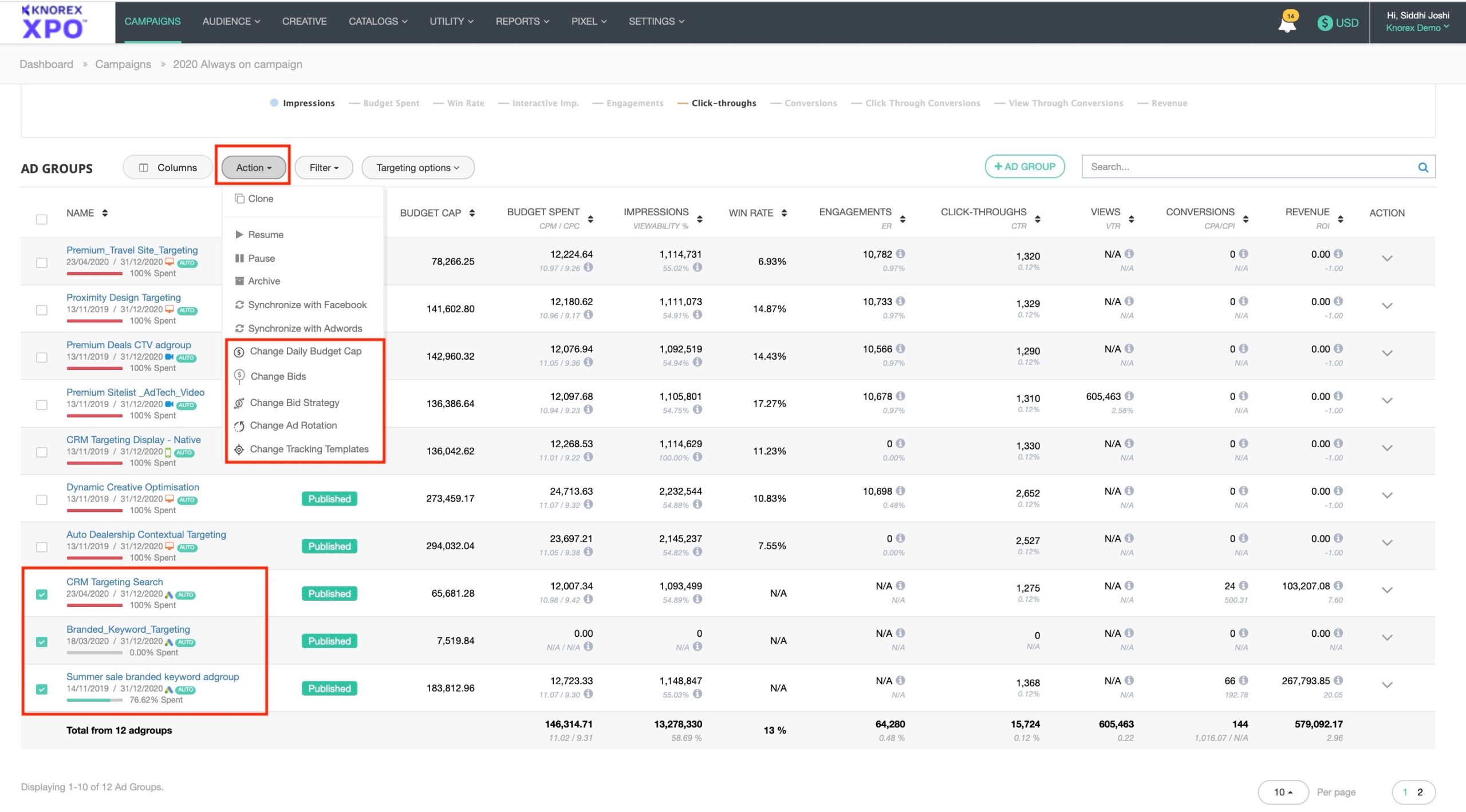
Under the campaign dashboard, select one or more Search ad groups. Click on the Action menu for the below dropdown options:

  1. Change Daily Budget Cap
  2. Change Bids
  3. Change Bid Strategy
  4. Change Ad Rotation
  5. Change Tracking Templates
  6. Change Custom Parameters 
Screenshot 2020-12-21 at 3.39.52 PM.jpg

If you select any other ad group channels (Facebook and/or Programmatic), the above bulk update options will be disabled. 

1. Change Daily Budget Cap #

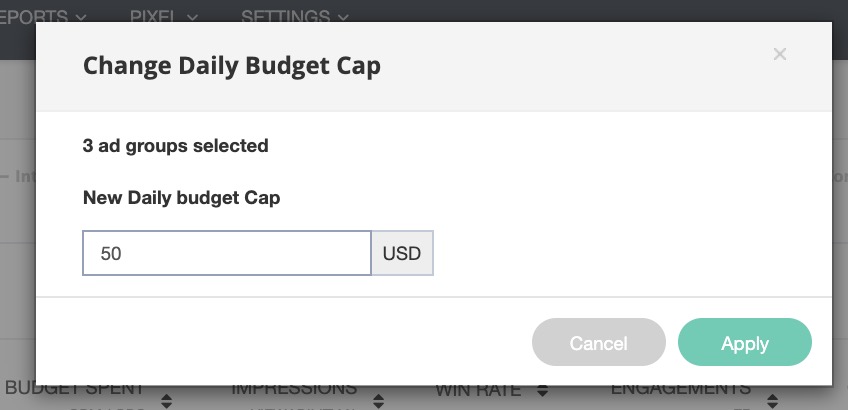
  • You can update one or more of the selected ad group’s daily budget cap only if the option “Don’t apply daily budget cap to ad groups” at the campaign level is ticked. You will then be able to bulk update as shown in the below image.

  • If not ticked, you will not be able to edit the daily budget cap for the ad groups. This is because the campaign will have a shared budget that cannot be edited. 

2. Change Bids #

  • You can edit the bid amounts of the selected ad groups.
  • You can change the default max CPC bid to target CPA, and vice versa. Other strategies amounts cannot be edited.
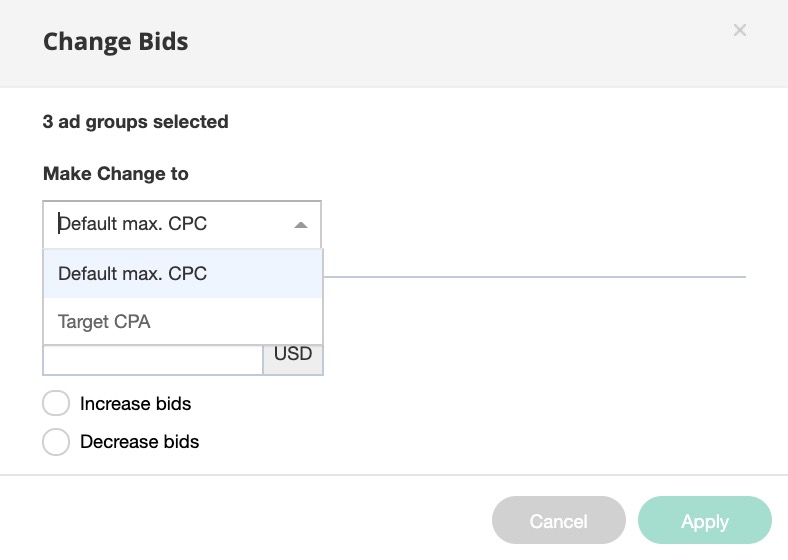
  • Set new bids (values) to your selected strategy.
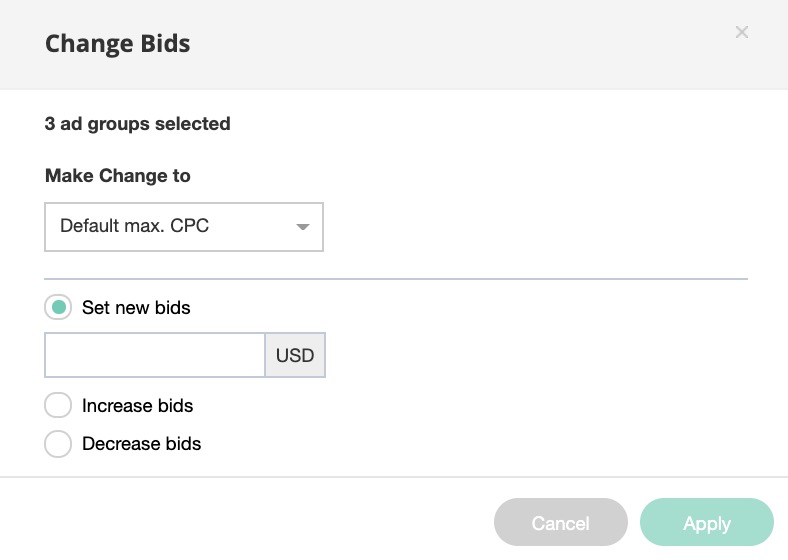
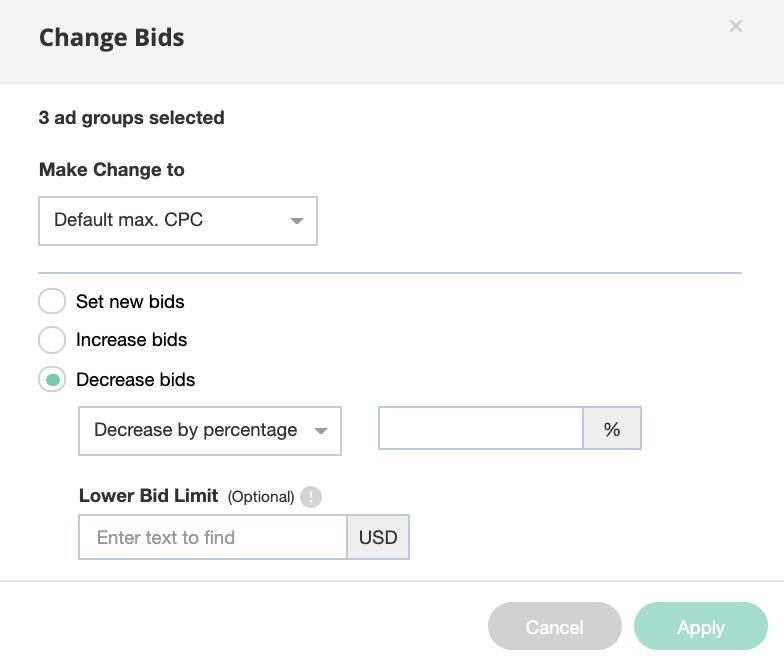
  • Update the bids by either increasing or decreasing the bid amounts. Here, you will have the option to set an upper bid limit where your bid values will never be higher than this amount or a lower bid limit where your bid values will never be lower than this amount.
  • These can be either by percentages or by the amount. 
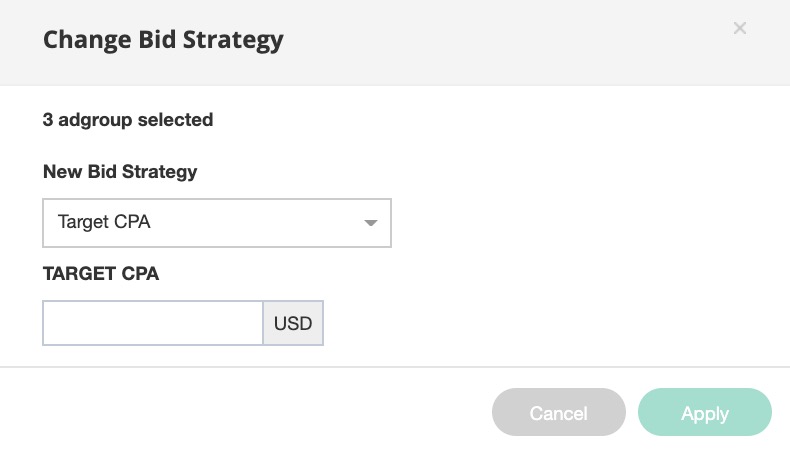
3. Change Bid Strategy #

If the option “Don’t apply daily budget cap to ad groups” at the campaign level is ticked, and if you haven’t set a bid strategy at the campaign level, only then:
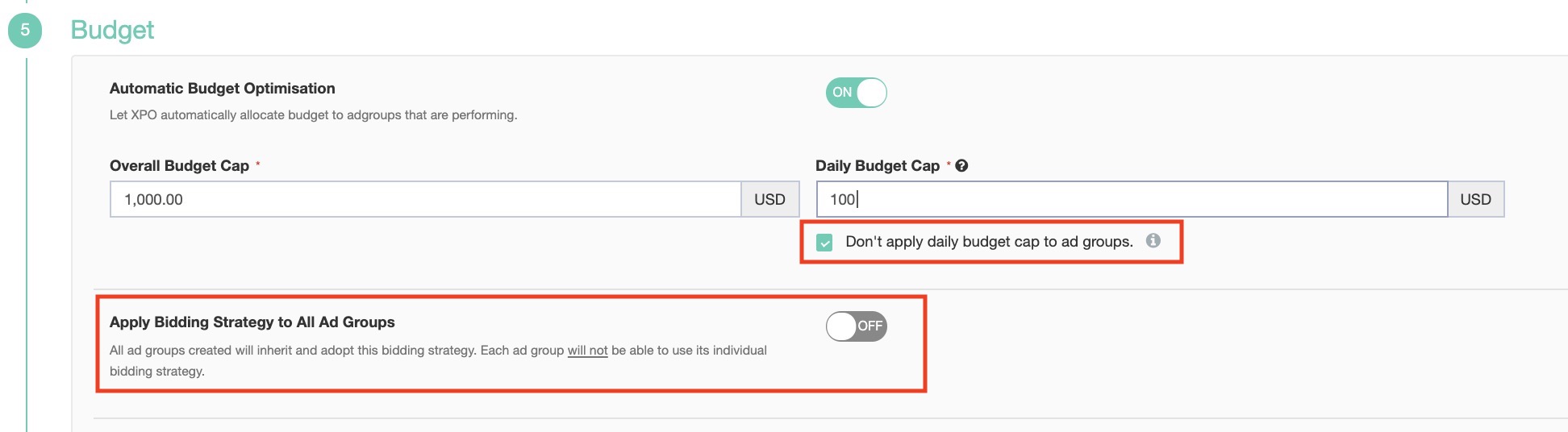
  • You can make edits to both the bid amount as well as change the bid strategy.
4. Change Ad Rotation #

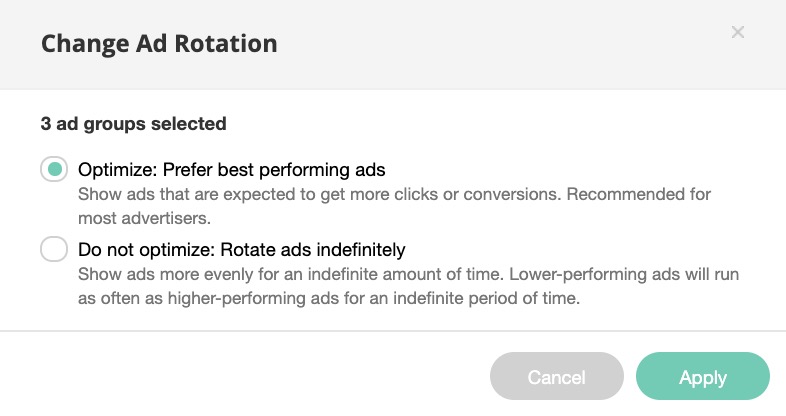
  • When you have multiple ads within an ad group(s), you can decide how you want these ads to be viewed since only one ad is viewed by a prospect at every given time.
  • You can update your ad rotation for one or more ad groups here.
E. Change Tracking Template #

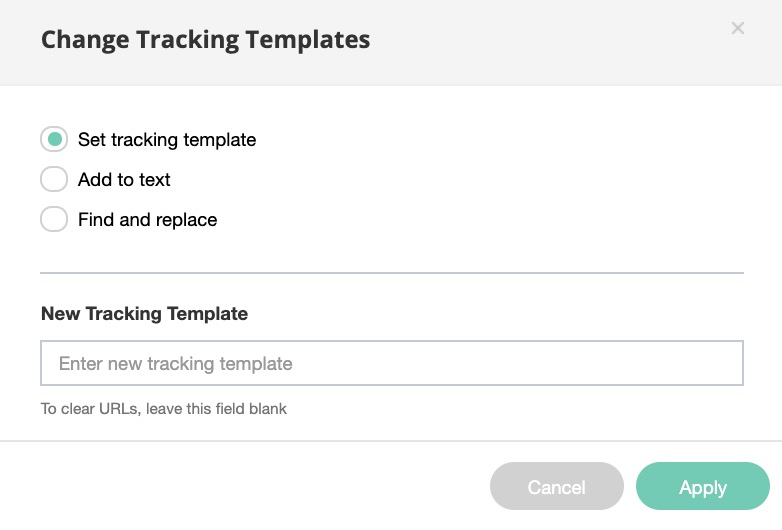
A tracking template lets you put additional information in the URL to identify the source of an individual ad click. For instance, you can add a URL parameter that tells you which campaign and ad group contained the creative that the user clicked on, what type of device the user was on, and which keyword triggered them.

You will have 3 options for editing the tracking template for one or more ad groups:

  • Set tracking template
  • Add to text 
  • Find and Replace

5. Change Custom Parameters #

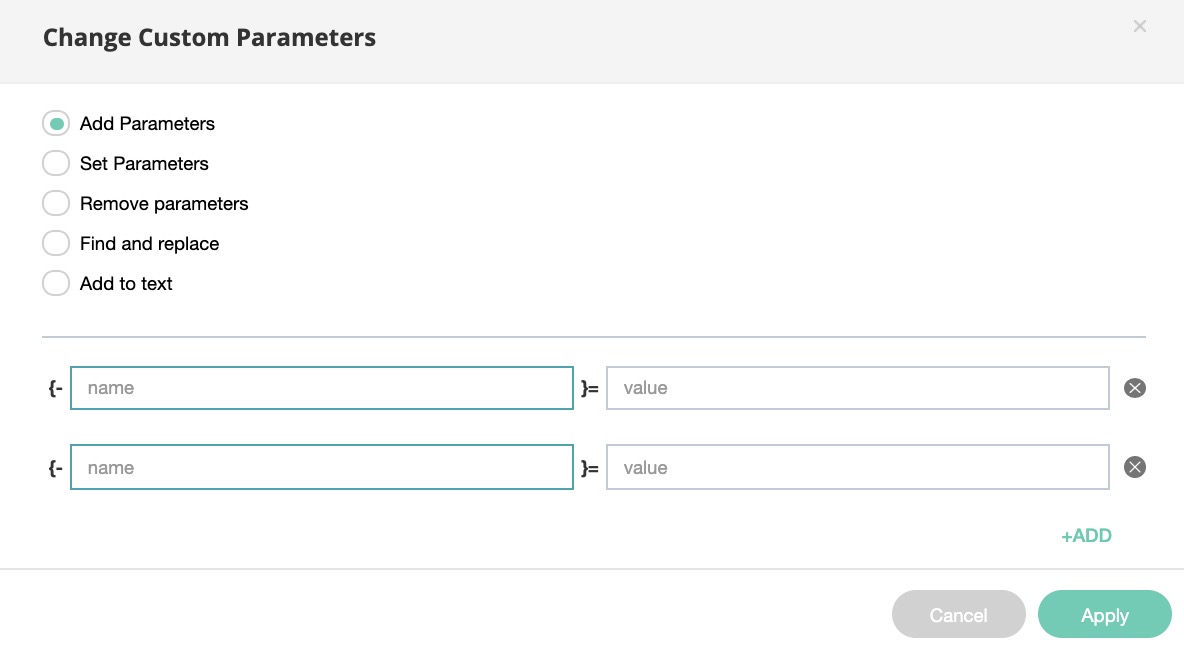
You will have 5 options for editing custom parameters:

  • Add parameters
  • Set parameters
  • Remove parameters
  • Find and replace 
  • Add to text
  1. You can also find the Custom Parameters: Select Columns dropdown > tick custom parameters. 
  2. Besides your selected ad group, click the edit button under the custom parameters and add your parameters for an individual ad group only.
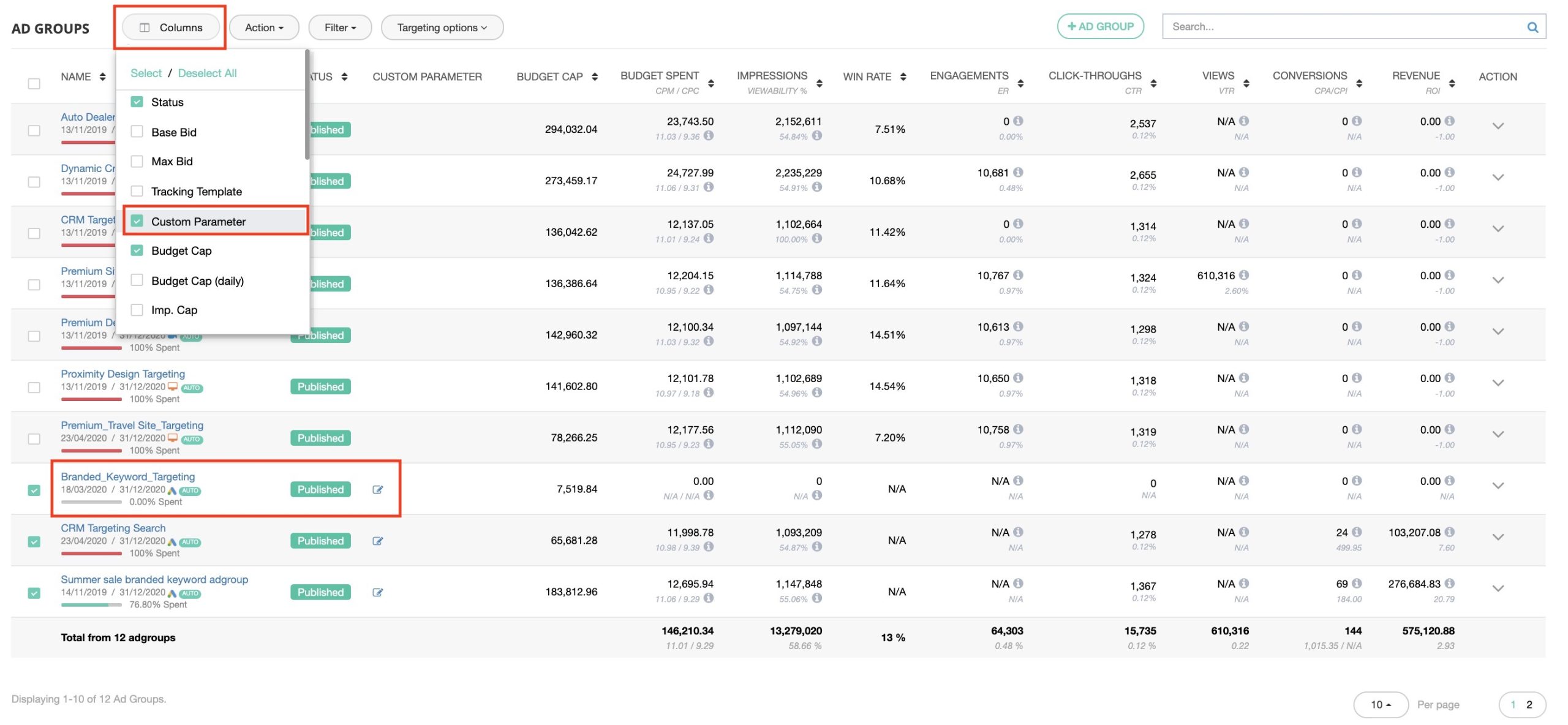
Once you have completed your updates, the changes will reflect automatically for the Search ad groups and on your campaign dashboard.

Updated on September 19, 2025

What are your Feelings

  • Happy
  • Normal
  • Sad

Share This Article :

  • Facebook
  • X
  • LinkedIn
  • Pinterest
How to Bulk Upload Search ExtensionsHow to Bulk Update Search Keywords

Leave a Reply Cancel reply

Your email address will not be published. Required fields are marked *

Table of Contents
  • 1. Change Daily Budget Cap
  • 2. Change Bids
  • 3. Change Bid Strategy
  • 4. Change Ad Rotation
  • E. Change Tracking Template
  • 5. Change Custom Parameters

Have any questions?

[email protected]

The Billows, Ring Road, Kilimani

Nairobi, Kenya

Follow us