
Besides launching Google Ads (Search) and Facebook Ads, you can also launch LinkedIn Ads with MediaPath. To get started, link your LinkedIn Campaign Manager Account to your MediaPath Advertiser Account and you can start launching LinkedIn campaigns from within MediaPath.
LinkedIn Campaign Manager is an ad management tool that lets you create, launch, and analyze the performance of your LinkedIn ad campaigns. Here are the supported LinkedIn ad formats.
Before You Start #
Ensure that you have connected your Linkedin account to MediaPath.
Instructions
1. Quick Launch a New Campaign #
Learn how to quick launch a new campaign.
Select LinkedIn as your channel.
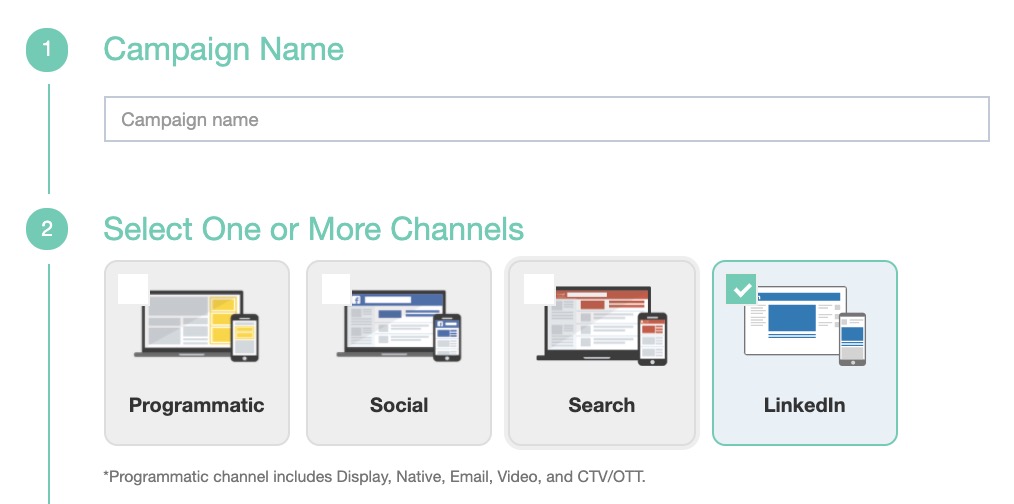 #
- LinkedIn’s objective-based advertising program allows you to create campaigns in MediaPath based on your marketing goals.
- LinkedIn supports 7 types of campaign objectives to enable full-funnel marketing coverage from the awareness stage through consideration and to conversion. Currently, MediaPath supports 6 of these objectives.
| Campaign Objectives | LinkedIn Terminology | MediaPath Terminology |
| Brand Awareness | Brand Awareness | Brand Awareness |
| Consideration |
|
|
| Conversions |
|
|
- Select the Advertiser and linked Ad Account from the list for which you want to create this campaign.
- Adjust the campaign’s timezone from the default setting to suit your scheduling needs.
- Set your campaign budget that will serve as the cumulative limit for all ad group budgets within the LinkedIn campaign. Setting a campaign budget is mandatory in the ad group setup process.
2. Create LinkedIn Ad Groups #
To run a LinkedIn campaign using MediaPath, you will need to create an ad group(s) to represent the trading ideas or strategies that you would like to execute.
- Create a new LinkedIn ad group.
- Select a LinkedIn ad format supported by MediaPath (Required field)
- These ad formats will be based on the objectives selected at the campaign level.
- Once you select the ad formats, you will only be able to link creatives of that specific ad format to this ad group.
- The type of ad formats cannot be changed once selected and saved.
Objectives Supported Ad Format/Type Brand Awareness - Single image ad
- Video ad
- Text ad
Website Visits - Single image ad
- Video ad
- Text ad
Engagement - Single image ad
- Video ad
Video Views - Video Ad
Lead Generation - Single image ad
- Video ad
Website Conversion - Single image ad
- Video ad
- Add your budget details.
Ad group budget cap must be lower than the budget set at the campaign level. You have 3 options for setting ad group budgets:
- Daily Budget Cap: This is the maximum spend limit per day. The minimum daily budget for LinkedIn ad groups is usually US$10.
- Lifetime Budget: The total amount of budget that your ad group will spend throughout its lifetime schedule. This budget here will be paced to reach the optimal performance for the ad group.
- Both Daily and Lifetime Budget: By combining these two, you have control over the daily pace as well as the total spend of the ad group. When you select this option, you will be able to set only a continuous campaign schedule, with no end date. This is because the ads will stop running once the lifetime budget amount is exhausted.
- Select your bidding strategy.
LinkedIn bid types are aligned to the objective that you selected at the campaign level and vary by the ad format chosen at the ad group level.
Bid Type How The Strategy Works & How Budget is Utilized Benefits Campaign Objective & Bid Optimization Goal Maximum Delivery (Automated) MediaPath automatically bids to deliver the best results with efficient budget allocations No bid management
Improved ROI at full budget with smooth delivery
- Brand Awareness – impressions
- Website Visits – link clicks & landing page clicks
- Engagement – clicks on ad, landing page clicks, social action + LinkedIn page follows
- Video Views – video views
- Lead Generation – lead generation submissions
- Website Conversions – conversions/landing page clicks
Target Cost Delivers your target ROI by setting a target cost per key result. Here, the budget is utilized based on the target cost Strategy for scaling budget and optimizes based on your target cost
- Brand Awareness – impressions (CPM)
- Website Visits – landing page clicks (CPC)
- Engagement – clicks on ad, landing page clicks, social action + LinkedIn page follows (CPC)
- Video Views – video views (CPV)
Manual Bidding Here, you specify the maximum amount you are willing to bid for. Budget is used based on the bid Maximum control over bid - Brand Awareness – impressions (max CPM)
- Website Visits – landing page clicks (max CPC), impressions (max CPM)
- Engagement – engagement clicks (max CPC), impressions (max CPM)
- Video Views – video views (max CPV), impressions (max CPM)
- Lead Generation – lead generation submissions or clicks (max CPC), impressions (max CPM)
- Website Conversions – conversions or clicks (max CPC), impressions (max CPM)
- Select your targeting strategies.
Get your ad messages in front of the right people and increase engagement with LinkedIn’s targeting strategies.
Targeting Description Language - The audience size will vary depending on which language you select here. English is set as the default option.
- Your ad creative content will be crafted in the chosen language.
- Once the profile language is selected, it cannot be altered.
Geo Location - Location targeting is a required field. It is determined by the permanent locations specified in the user profiles and/or by their IP address for short-term visits.
- You can choose either a Recent or Permanent location from the dropdown menu.
- You can enter a specific location and select from the suggested options.
- Locations can also be excluded from your target by enabling the exclude button.
- Your MediaPath account location is set as the default location.
Detailed Targeting These are a set of targeting capabilities that gives you the unique ability to combine LinkedIn’s powerful professional data with your own first-party data to reach the right audience on LinkedIn.
- This is field is optional.
- To include audience or audience attributes, select +Custom (coming soon), or +Attributes. This increases your audience size.
- To exclude audience or audience attributes, click on +Exclude People and then +Custom (coming soon) or + Attributes. This reduces your audience size. You can also click on Narrow Audience Further (coming soon), to further reduce the size.
- To refine your audience, you can click on +Narrow Targeting (coming soon).
- MediaPath prompts you with a message Audience Too Narrow to alert you to refine audience size before you click save.
Audience Attributes To build your target audiences based on their professional attributes, you can select from the following options and expand them further for a more detailed targeting approach:
- Company
- Demographics
- Education
- Job Experience
- Interest and Traits
Audience Expansion By enabling this option, you can extend the reach of your LinkedIn campaign by showing your ad to audiences with similar attributes to those of your chosen target audience.
Placements In your LinkedIn campaign, you can extend the reach by selecting ad placement positions at the MediaPath ad group level.
- To expand the reach of your Sponsored Content campaigns, enable the LinkedIn Audience Network. This allows your ads to be delivered on third-party apps and sites beyond the LinkedIn feed, while maintaining the same bid type, targeting parameters, and budget.
- This targeting option is only available if your creative format is a single image ad or video ad format.
- Placements are NOT available for the Lead Generation campaign objective.
- You can exclude certain IAB publishers’ sites and apps by clicking on +Categories to prevent showing your ads on them.
- You can exclude ad placements by selecting +Categories or by uploading CSV or TXT custom blocklist files. The blocklists can hold up to 20,000 website domains, iTunes App Store URLs, and Android Play Store URLs. MediaPath processes these files within 48 hours, which cam them be reused for other campaigns.
- Sponsored Content (coming soon) will appear both on LinkedIn feed and across trusted, third-party publishers apps and sites, reaching all members of your target audience.
- LinkedIn automatically optimizes Sponsored Content ads (coming soon) for better professional engagement.
3. Create LinkedIn Creatives using MediaPath #
- In a New Creative, fill up the details and select the LinkedIn Ad Account that you will be using, then select LinkedIn Ads.
- For Single Image Creatives, you can provide a destination URL and Scrape it, which will gather data from the given website such as headline, image, and description. This helps to auto-fill your creative design form.
- You can link/unlink creatives from your LinkedIn Ad Group.
- Save and publish your LinkedIn campaign through MediaPath, and you are all set to go.
4. View Campaign Reports #
- In your Insight Reports, you will be able to analyze the performance of your LinkedIn campaigns, ad groups, and creatives.
- You can generate a link or send an email of the report to recipients.
- From My Reports, you can also customize your report by selecting the LinkedIn campaign.
5. Tracking LinkedIn Conversions in MediaPath #
Conversion tracking will analyze the actions taken by your prospects after they click or view your LinkedIn ad.
- Create Conversion Goals for your LinkedIn campaign.
- To apply conversion tracking to your campaigns, LinkedIn Insight Tag on your website will be auto-enabled. To view Insight Tags you can follow the below steps. (Coming soon)
- You can View History of your LinkedIn campaigns and ad groups, to keep track of all changes, edits, updates, etc. made to them.
- From the ad group information page, you can modify your targeting options and then save your adjustments.
- You can link the creatives to the ad groups but only the selected ad format options will be displayed.
- You can allocate MediaPath accounts to LinkedIn accounts from the Utility menu by selecting Manage LinkedIn followed by Allocate Accounts.
- After completing the prerequisites, you can proceed to sync campaigns between MediaPath and LinkedIn.