
Before You Start #
- To add or remove Facebook forms, you must have Facebook page administrator or editor permission. See Facebook permissions and roles .
- To add a Facebook form, you need to add or create a custom page tab to your Facebook page.
- Facebook mandates having at least 2,000 likes on your page before you can add a custom tab, hence, a form to it.
As you continue launching Lead Gen Ad Campaigns on Facebook, you may find yourself with a collection of forms that may no longer hold significance to you. While Facebook does not offer the ability to delete a Facebook form, it allows you to archive it .
How to Archive Form(s): #
- Go to your Meta Ads Manager Account and select the Facebook Page that you have attached the Facebook Form to, then click View Page. You will be directed to that Facebook Page.
- Click Publishing Tools.
- On your left, click on the hamburger menu icon.
- Click on Instant Forms. This will show you the list of forms that you have created, if any.
- Here, we have several forms which we have created. We would like to archive them to reduce clutter (NOTE: Facebook does not support delete for this). Select one or more forms, and click Actions. A message will pop up asking you to archive them. Click Apply.
To Reactivate Archived Form(s): #
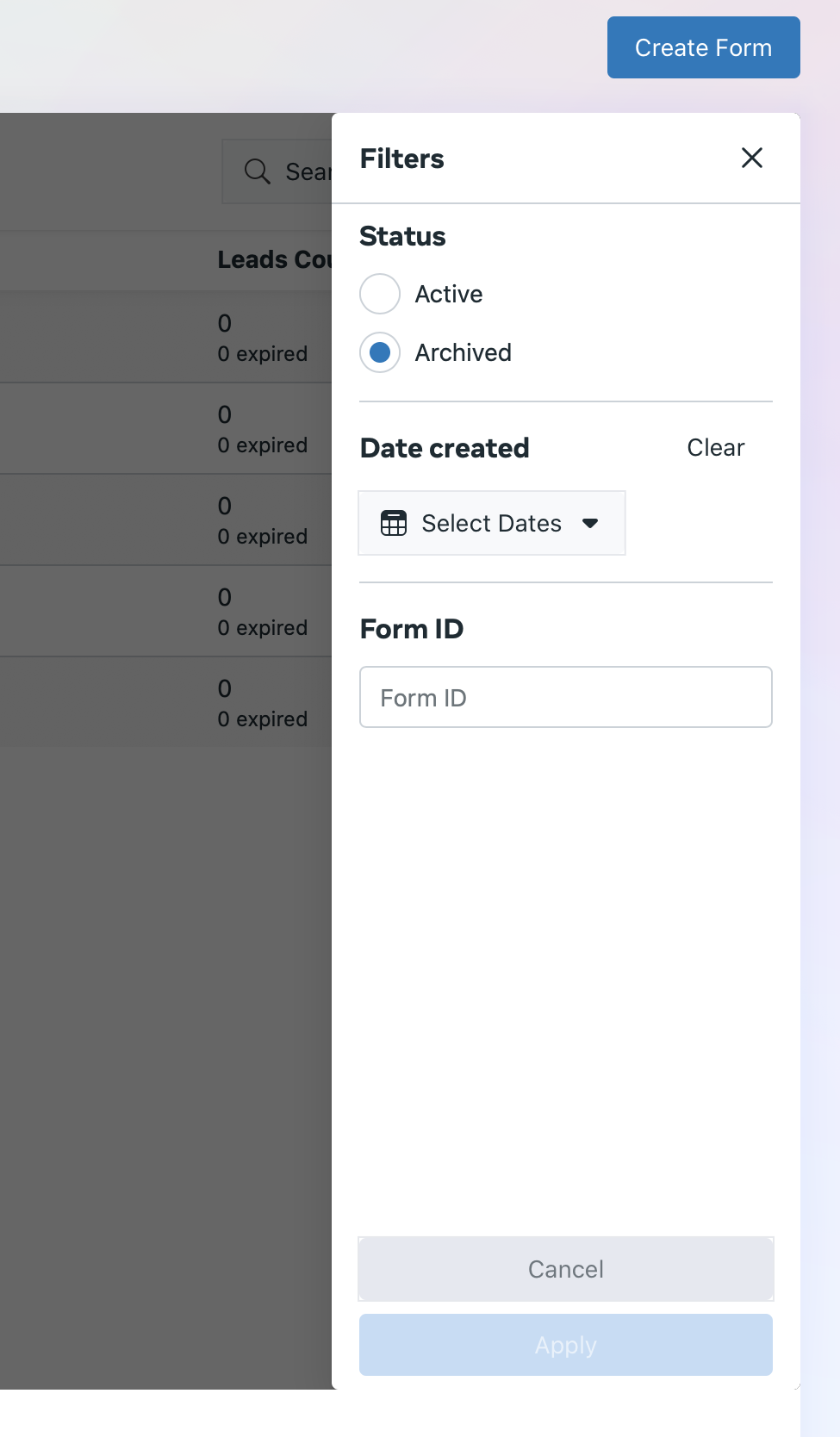
In this Instant Forms screen, click on the Actions button. Change the status to be Archived and click Apply. You will now be presented with a list of archived forms.
Find out how to download lead data from Facebook Ads Manager (NOTE: Leads are automatically deleted by Facebook after 90 days , so remember to back up regularly or use MediaPath leads to sync over).