- This creative type can only be used with Google’s Performance Max campaigns.
- Learn about the prerequisites and steps to advertise your products using the Performance Max campaign type in MediaPath.
Instructions #
- From Account Dashboard, go to Menu > Creative, click +Creative.
- In the New Creative screen
- Creative Type: Select Google Ads > Performance Max.
- Google Ads Account: Select your desired Google Ads account for this creative. It must be linked to MediaPath.
- Merchant Center Account: Select your desired Merchant Center Account with products to be used in this creative. It must be linked to MediaPath.
- Once you’ve made your selections, click Submit. You are now ready to start adding assets to your creative.
Build the creative #
Launch the newly created ad. In the Design section, build the Performance Max creative by completing the information listed below.
| AssetsFinal URL: the URL address of the webpage in your website that people reach after they click your ad.Images, Logos, and Videos: can be uploaded or directly chosen from the XPO Media Library, which can be shared across accounts.HeadlinesLong HeadlinesDescriptions | |
| Other fieldsCall to Action: “Apply Now”, “Book Now”, etc.Business Name: the name of the business being promoted. |
Creative preview #
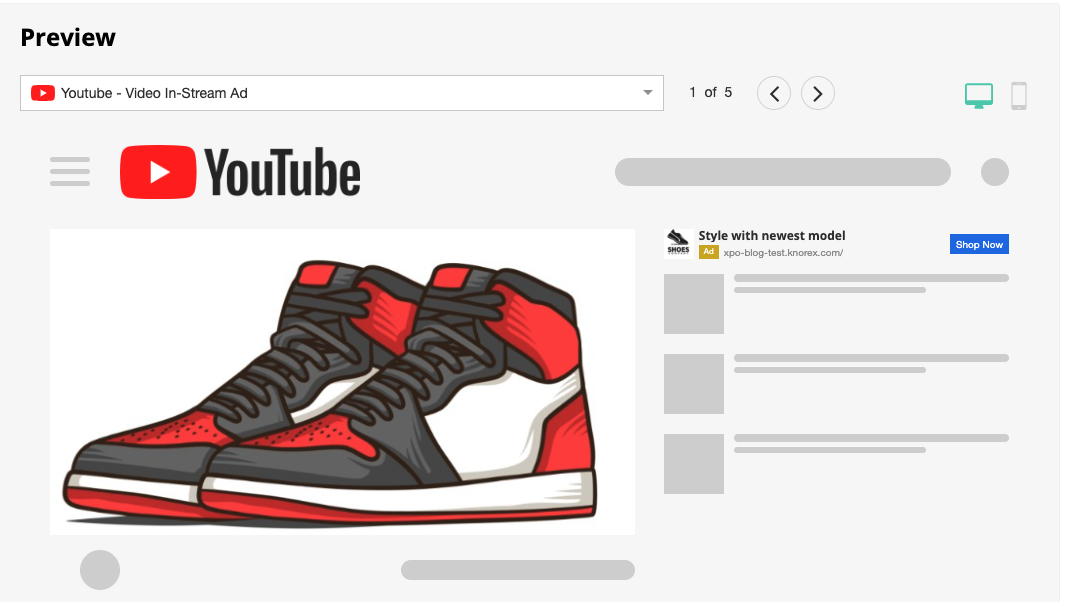
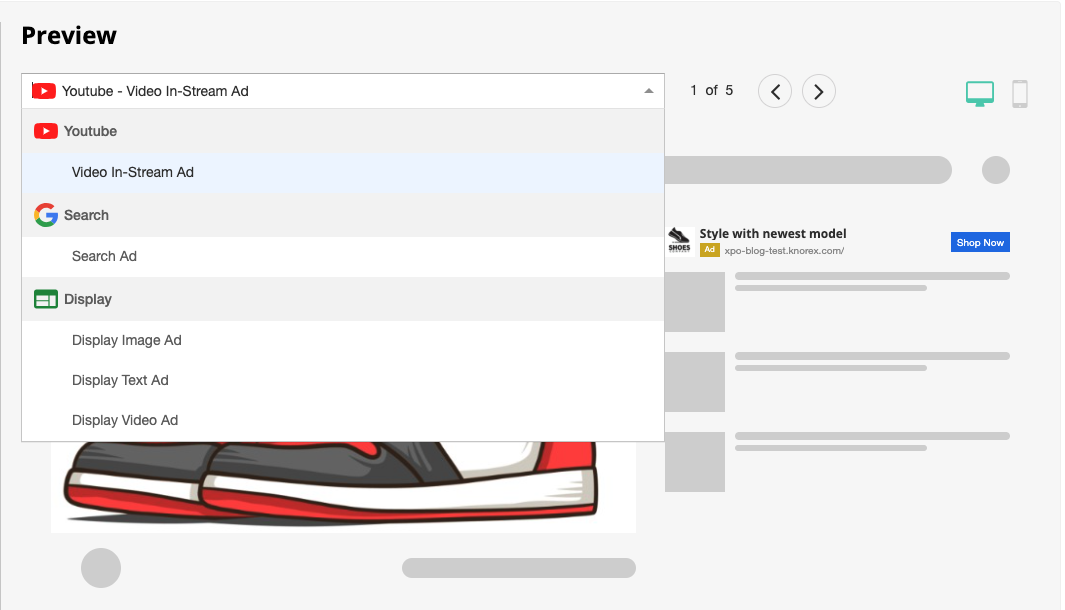
On the right side of the creative edit page, you can preview what your ad will look like in each of the device types (web, mobile) and channels (Youtube, Google Display, Discover, Search) where Performance Max campaigns can be shown.