- This feature is only applicable for Programmatic (Display, Video, Audio, Native, CTV/OTT, Email, and DOOH) campaigns.
- To learn more about how bulk operations are applied to other channels in MediaPath, see:
- How to Bulk Update Meta Ad Group Targeting
- How to Bulk Update LinkedIn Ad Group Targeting
- How to Bulk Update Search Ad Group Targeting
MediaPath allows you to bulk operate (i.e. add, remove, edit) on multiple ad groups from the Programmatic Channel at the same time.
Instructions #
- From your MediaPath Admin Dashboard, navigate to the Ad Groups section and select one or more (programmatic) ad groups that you would like to edit or update.
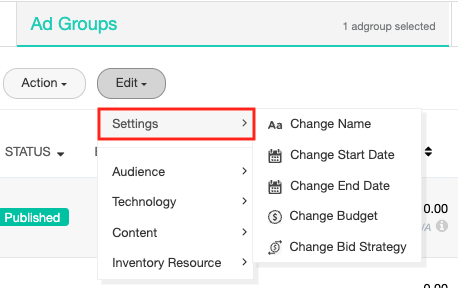
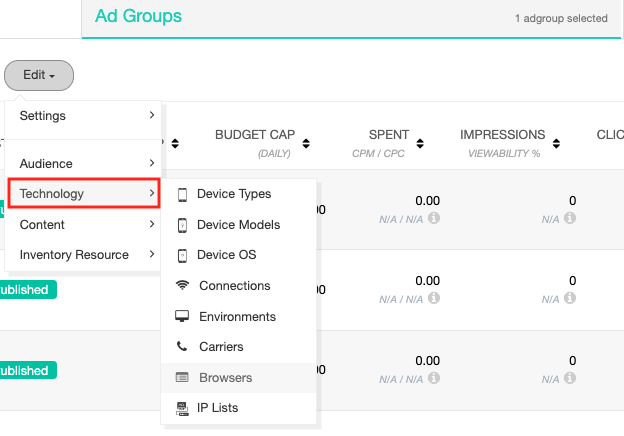
- Under Edit, you can edit the following sections: (a) Settings, (b) Audience, (c) Technology, (d) Content, and (e) Inventory Resource.
- Once you’ve finished editing, click Save to submit your bulk update request. Your request will be processed within a few seconds to minutes. To check the status of your request, go to the menu bar to find Utility > Bulk Actions.
(a)Settings #
In this section, you can edit the following ad group details:
- Name
- Start and End date
- Budget
- Spend limit
- Bid strategy
- Bid value
- Billing events
(b) Change Targeting Option – Audience
#
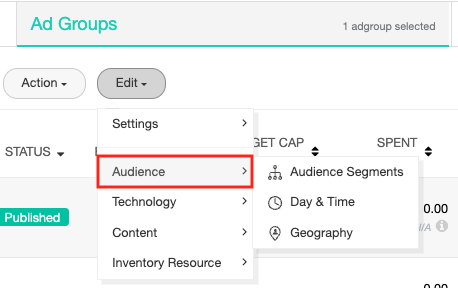
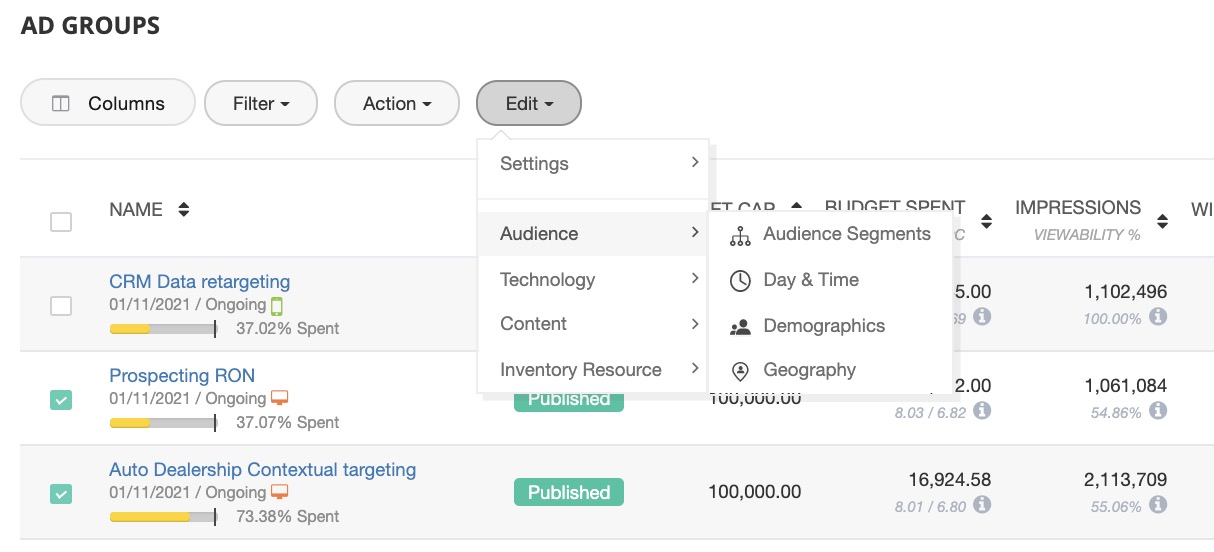
Below are the targeting options that you can change within the Audience section:
| (i) Audience SegmentFrom the Audience option, select Audience Segment to add/edit/remove a segment for the selected ad groups.Click on +Audiences to generate a list of all the audiences created under this account. The tags represent the type of audience segment. You can link new audiences to the selected ad groups.From the selected ad groups in step 1, you can now filter the ad group(s) for ones you wish to add a particular audience segment(s) for and the changes will reflect for the selected ad groups only.Include or Exclude the segments accordingly.From the audience list, you will be able to see the number of ad groups linked to them and accordingly select or deselect an ad group. |
| (ii) Day & TimeUpdate the day and time for multiple ad groups.Opt for either All days or Working hours, or select them manually. The changes you make will be reflected in your selected ad groups.Select a timezone, either Advertiser timezone or User timezone.NOTE: Whenever you bulk update multiple ad groups with different dayparting/ timing, only a default/common value will appear. |
| (iii) Age & GenderUpdate the age and gender for multiple ad groups.Select a target age range from 18 to 65+.Select your target gender as Unknown, Male, or Female. Unknown is the default selected gender. |
| (iv) Geography/GeolocationYou may add/remove locations to/from multiple ad groups, but at least one location must always be selected.Import geo-lists (learn more).Search for locations and add them as targeting locations.From the Actions dropdown menu, Include/Exclude the added locations as well as change the bid of specific location(s).From the location list, you can view the number of ad groups linked to each location, and select or deselect them as needed. |
(c) Technology #
(d) Content #
(e) Change Targeting Option – Inventory Resource #
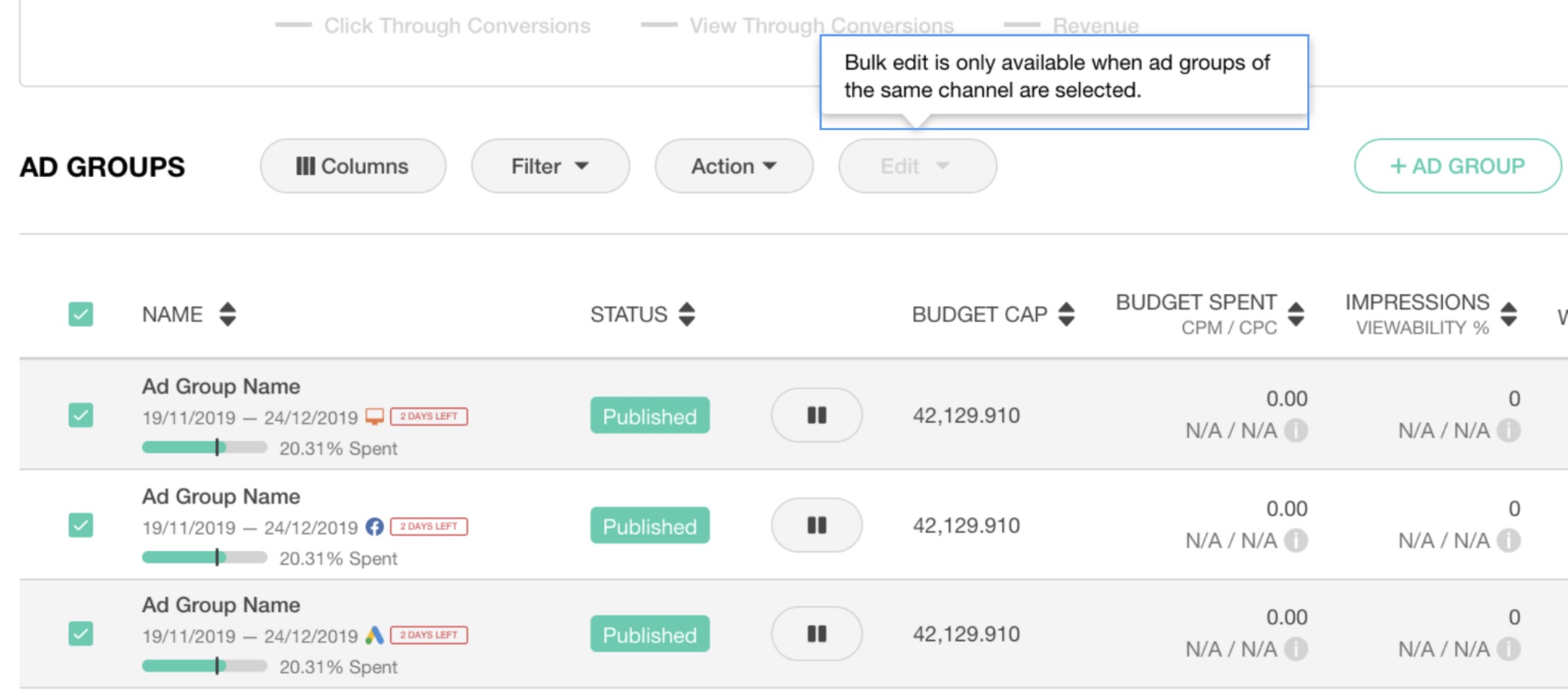
The bulk update option will only be enabled when ALL of the selected ad groups are of the same type (e.g. programmatic only, and not mixing). Otherwise, the Edit button will be grayed out.